Age and Sex Analysis Of Microsoft USA MVPs

A couple of weeks ago, this came across my Twitter

image

I participated in this hackathon (well, helped run the F# one).  My response was:

image

I was surprised that I got into this exchange with a Microsoft PM:

image

That last comment by me was inspired by Mark Twain: “never wrestle with a pig.  You just get dirty and the pig likes it.”  But it did get me to thinking about the composition of the US MVPs.  I did an analysis a couple of years ago of the photos of the Microsoft MVPs (found here and here) so it made sense to follow up on that code and see if I was wrong about my “middle age white guy” hypothesis.  I could get the photos from the MVP site and pass them into the Microsoft Cognitive Services API for facial analysis for age/sex data.  Using F# made the analysis a snap.

A nice thing about the Microsoft MVP website is that it is public and has photos of the MVPs.  Here is one of the pages:

image

and when you look at the source of the page, each of those photos has a distinct uri:
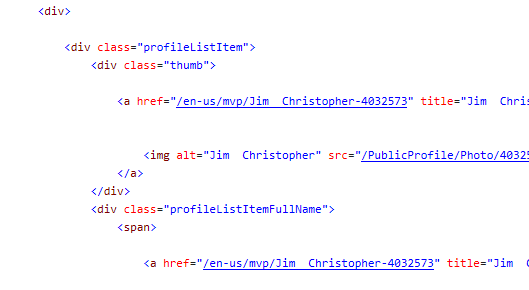
image

I opened up Visual Studio and created a new F# project.  I went into the script file and brought in the libraries to do some http requests.  I then created a couple of functions to pull down the HTML of each of the 19 pages and put it into 1 big string:

1 let getPageContents(pageNumber:int) = 2 let uri = new Uri("http://mvp.microsoft.com/en-us/search-mvp.aspx?lo=United+States&sl=0&browse=False&sc=s&ps=36&pn=" + pageNumber.ToString()) 3 let request = WebRequest.Create(uri) 4 request.Method <- "GET" 5 let response = request.GetResponse() 6 use stream = response.GetResponseStream() 7 use reader = new StreamReader(stream) 8 reader.ReadToEnd() 9 10 let contents = 11 [|1..19|] 12 |> Array.map(fun i -> getPageContents i) 13 |> Seq.reduce(fun x y -> x + y)

(OT: Since I did a map..reduce on lines 12 and 13, does that mean I am working with “Big Data”?)

I then created a quick parser to find only the uris of the photos in all of the HTML.

1 let getUrisFromPageContents(pageContents:string) = 2 let pattern = "/PublicProfile/Photo/\d+" 3 let matchCollection = Regex.Matches(pageContents, pattern) 4 matchCollection 5 |> Seq.cast 6 |> Seq.map(fun (m:Match) -> m.Value) 7 |> Seq.map(fun v -> "https://mvp.microsoft.com/en-us" + v + "?language=en-us") 8 |> Seq.toArray 9 10 let uris = getUrisFromPageContents contents

Sure enough, I got 684 uris for MVP photos.  I then wrote another Web Request to pull down each of the photos and save them to disk:

1 let saveImage uri = 2 use client = new WebClient() 3 let id = Guid.NewGuid() 4 let path = @"F:\Git\ChickenSoftware.ParseMvpPages.Solution\ChickenSoftware.ParseMvpPages\photos\" + id.ToString() + ".jpg" 5 client.DownloadFile(Uri(uri),path) 6 7 uris 8 |> Seq.iter saveImage 9

And I now have all 684 photos on disk.

image

I did not bring down the names of the MVPs – instead using a GUID to randomize the photos, but a name analysis would also be interesting.  With the photos now local, I could then upload them to Microsoft Cognitive Services API to do facial analysis.  You can read about the details of the API here.  I created a third web request to pass the photo up and get the results from the API:

1 let getOxfordResults path = 2 let queryString = HttpUtility.ParseQueryString(String.Empty) 3 queryString.Add("returnFaceId","true") 4 queryString.Add("returnFaceLandmarks","false") 5 queryString.Add("returnFaceAttributes","age,gender") 6 let uri = "https://api.projectoxford.ai/face/v1.0/detect?" + queryString.ToString() 7 let bytes = File.ReadAllBytes(path) 8 let client = new HttpClient() 9 client.DefaultRequestHeaders.Add("Ocp-Apim-Subscription-Key","xxxxxxxxxxx") 10 let response = new HttpResponseMessage() 11 let content = new ByteArrayContent(bytes) 12 content.Headers.ContentType <- MediaTypeHeaderValue("application/octet-stream") 13 let result = client.PostAsync(uri,content).Result 14 Thread.Sleep(TimeSpan.FromSeconds(5.0)) 15 match result.StatusCode with 16 | HttpStatusCode.OK -> Some (result.Content.ReadAsStringAsync().Result) 17 | _ -> None

Notice that I put a 5 second sleep into the call.  This is because Microsoft throttles the requests to 20 per minute. Also, since some of the photos do not have a face, I used the F# option type. The results come back from the Microsoft Cognitive Services API  as Json. To parse the results, I used the FSharp Json Type Provider:

1 type FaceInfo = JsonProvider<Sample="[{\"faceId\":\"83045097-daa1-4f1c-8669-ed012e9b5975\",\"faceRectangle\":{\"top\":187,\"left\":209,\"width\":214,\"height\":214},\"faceAttributes\":{\"gender\":\"male\",\"age\":42.8}}]"> 2 3 let parseOxfordResuls results = 4 match results with 5 | Some r -> 6 let face = FaceInfo.Parse(r) 7 match Seq.length face with 8 | 0 -> None 9 | _ -> let header = face |> Seq.head 10 Some(header.FaceAttributes.Age,header.FaceAttributes.Gender) 11 | None -> None

So now I can get estimated age and gender from Microsoft Cognitive Services API.  I was disappointed that the API does not estimate race.  I assume they have the technology but from a social-acceptance point of view, they don’t make it publically available.  In any event, a look though their photos show that a majority are white people.  In any event, I went ahead and ran this and went out to work on my sons stock car while the requests were spinning.

1 #time 2 let results = 3 let path = @"F:\Git\ChickenSoftware.ParseMvpPages.Solution\ChickenSoftware.ParseMvpPages\photos" 4 Directory.GetFiles(path) 5 |> Array.map(fun f -> getOxfordResults f) 6 |> Array.map(fun r -> parseOxfordResuls r)

When I came back, I had a nice sequence of a tuple that contained ages and genders.

image

To analyze the data, I pulled in Math .NET.  First, I took a look age:

1 Seq.length results //684 2 3 let ages = 4 results 5 |> Seq.filter(fun r -> r.IsSome) 6 |> Seq.map(fun o -> fst o.Value) 7 |> Seq.map(fun a -> float a) 8 9 let stats = new DescriptiveStatistics(ages) 10 let count = stats.Count 11 let largest = stats.Maximum 12 let smallest = stats.Minimum 13 let mean = stats.Mean 14 let median = Statistics.Median(ages) 15 let variance = stats.Variance 16 let standardDeviation = stats.StandardDeviation 17 let kurtosis = stats.Kurtosis 18 let skewness = stats.Skewness 19 let lowerQuartile = Statistics.LowerQuartile(ages) 20 let uppserQuartile = Statistics.UpperQuartile(ages) 21

Here are the results. 
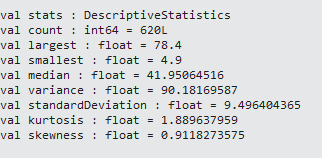
image

I got 620 valid photos of the 684 MVPs – so a 91% hit rate and I have enough observations to make the analysis statistically valid.  It looks like Cognitive Services made at least 1 mistake with an age of 4.9 years –> perhaps someone was using a meme for their photo?  In any event, the mean is estimated at 41.95 and the median is 40.95, so a slight skew left. (Note I mislabeled it on the screen shot above)

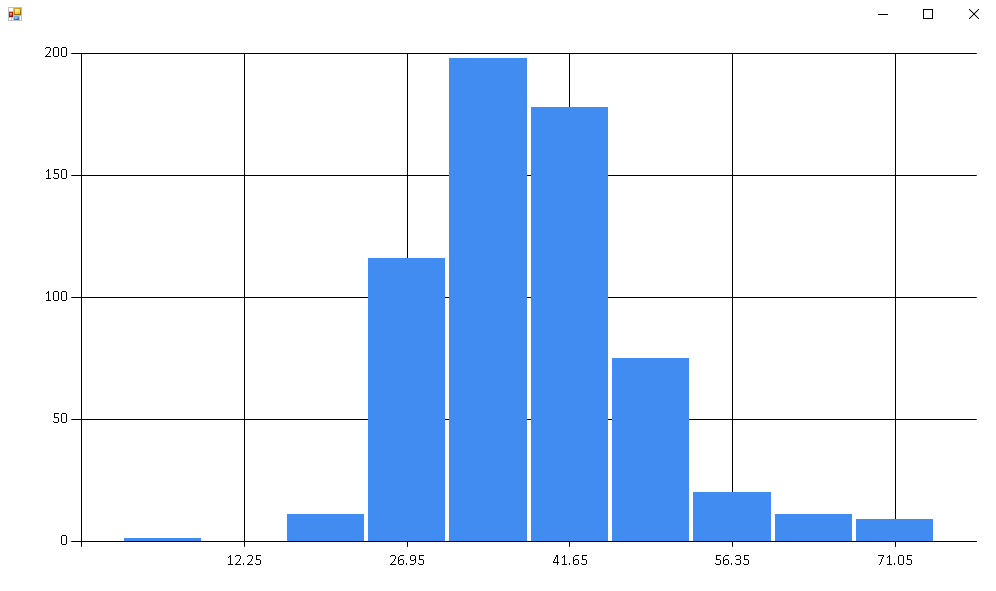
I then wanted to see the distribution of the ages so I brought in FSharp charting and ran a basic histogram:

1 open FSharp.Charting 2 3 let chart = Chart.Histogram(ages,Intervals=10.0) 4 Chart.Show(chart)
image

So the ages look very Gaussian.

I then decided to look at gender:

1 let gender = 2 results 3 |> Seq.filter(fun r -> r.IsSome) 4 |> Seq.map(fun o -> snd o.Value) 5 6 gender 7 |> Seq.countBy(fun v -> v) 8 |> Seq.map(fun (g,c) -> g, c, float c/float count)

With the results being:

image

So there are 12% females and 88% males.  With an average age 42 years old and 88% male, “middle age white guy” seems like an appropriate label and I stand by my original tweet – we certainly have work to do in 2017.

You can find the gist here

Creating Dynamic Uris For Visual Studio Web Tests

This post is part of the F# Advent Calendar in English 2015 project. Check out all the other great posts there! And special thanks to Sergey Tihon for organizing this. (Also, thanks to Scott W from whom I copy/pasted the prior sentences.)

One of the cooler features built into Visual Studio 2015 is the ability to create web tests and load tests. I had blogged about customizing them here and here but those posts did not cover the scenario where I need to dynamically create a uri. For example, consider the following web test that is hitting a web api 2 controller with some very rpc syntax:
image

Notice that the ContextParameters are setting the uri so I can move the test among environments.  Also, notice the dynamic part of the uri called {{friendlyName}}.

One of the limitations of the out of the box web test is that context parameters cannot be data bound but can be appended as part of the uri. Also, query string parameters can be data bound cannot be appended as part of the uri. So if we want to go to a database and get a series of friendly names for our chickens to pass into our test, we are stuck.  Grounded really.

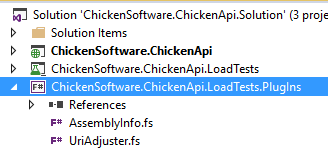
Enter web test plug ins.  I added a F# project to the solution and added a .fs file called UriAdjuster like so:

image

I then added references to:

Microsoft.VisualStudio.QualityTools.WebTestFramework and FSharp.Data.TypeProviders

image

I then added the following code to the UriAdjuster file:

namespace ChickenSoftware.ChickenApi.LoadTests.PlugIns open System open System.Text open Microsoft.FSharp.Data.TypeProviders open Microsoft.VisualStudio.TestTools.WebTesting type internal EntityConnection = SqlEntityConnection<"myConnectionString",Pluralize = true> type public UriAdjuster() = inherit WebTestPlugin() let context = EntityConnection.GetDataContext() override this.PreRequestDataBinding(sender:Object, e:PreRequestDataBindingEventArgs) = let random = new Random() let index = random.Next((context.Chickens |> Seq.length) - 1) let chicken = context.Chickens |> Seq.nth(index) e.Request.Url <- e.Request.Url.Replace("{{friendlyName}}",chicken.FriendlyName) base.PreRequestDataBinding(sender,e) ()

So I am going to the database on every request (using the awesome of type providers), pulling out a random chicken and updating the url with its friendlyName.

So that’s it.  We now have the ability to create valid uris that we can then dump into our load test.  Since our load test is running so fast, I guess we can say it is flying. So perhaps chickens can fly?

Happy holidays everyone.

Taking a Hiatus From Blogging

I have blogged every Tuesday for the last six years.  Thank you to all of the people who took the time to read my posts and give comments.  I hope you benefitted from the content (if not the rookie formatting and sometimes creative spelling/grammar).  Recently, I signed a deal with  a publisher to write a book that has a a pretty aggressive deadline.  Because of the time commitment that writing a book takes,  I am taking a hiatus from blogging.  If all goes to plan, I will resume blogging in mid-2016.


Using Mocking Frameworks To Help With Unit Testing UI Controls

One of the more common reasons that developers tell us of why they don’t unit test is “All of my application is visual controls with code behind. Refactoring all of that code to a .dll that can be united tested will take more time than it is worth.” While it is true that unit testing is easier if your application lives “in code” as a separate assembly, you can still use unit testing in a UI-heavy code base. By judiciously using a mocking framework, you can speed up the process even more.

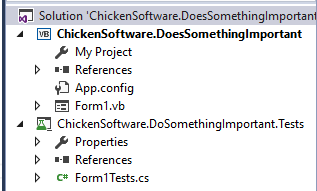
Consider this form from a WinForm application written in VB.NET.

image

The grid view has the following code behind :

Private Sub Button1_Click(sender As Object, e As EventArgs) Handles Button1.Click For counter = 0 To DataGridView1.RowCount - 1 If (DataGridView1.Rows(counter).Cells(11).FormattedValue) Then If (DataGridView1.Rows(counter).Cells(10).Value <> "") Then TextBox1.Text = FormatCurrency(TextBox1.Text - DataGridView1.Rows(counter).Cells(10).Value, 2) End If End If Next End Sub


The business logic is intermingled with the visual controls (TextBox1, DataGridView1, etc…). Is there a way to easily unit test this code? The answer is yes. Step one is to add a unit test project to the solution. Step two is to break the sub method into a function method. Once the methods have an input and an output, you can put a unit test on it. For example:

Private Sub Button1_Click(sender As Object, e As EventArgs) Handles Button1.Click For counter = 0 To DataGridView1.RowCount - 1 Dim initialValue = TextBox1.Text Dim cell0 = DataGridView1.Rows(counter).Cells(11) Dim cell1 = DataGridView1.Rows(counter).Cells(10) TextBox1.Text = GetCalculatedValue(initialValue, cell0, cell1) Next End Sub Public Function GetCalculatedValue(initalValue As String, cell0 As DataGridViewCell, cell1 As DataGridViewCell) As String Dim returnValue As String = initalValue If (cell0.FormattedValue) Then If (cell1.Value <> "") Then initalValue = FormatCurrency(TextBox1.Text - cell1.Value, 2) End If End If Return initalValue End Function

And we can add a unit test like this:

image

[TestMethod] public void GetCalculatedValue_ReturnsExpected() { Form1 instance = new Form1(); String baseValue = "$10.00"; DataGridView gridView = new DataGridView(); gridView.Columns.Add("TEST1", "TEST1"); gridView.Columns.Add("TEST2", "TEST2"); gridView.Rows.Add(new DataGridViewRow()); gridView.Rows[0].Cells[0].Value = "$1.00"; gridView.Rows[0].Cells[1].Value = "$2.00"; DataGridViewCell cell0 = gridView.Rows[0].Cells[0]; DataGridViewCell cell1 = gridView.Rows[0].Cells[1]; var actual = instance.GetCalculatedValue(baseValue, cell0, cell1); var expected = "$8.00"; Assert.AreEqual(expected, actual); }


Although this test runs green, it is suboptimal because we have to standup lots of objects (DataGridView, Columns, DataGridRow) just to get to the class we are interested in, in this case DataGridViewCell. Instead of generating all of that superfluous code, there is a better way to set the state of only the class we want – enter Mocking frameworks. Mocking frameworks give us the ability to focus only on the subjects under test (SUT) while ignoring everything else.

But there is a catch. There are 2 types of mocking frameworks: ones that generate their code based on inspecting the types and ones that generate their code based on the compiled IL. The former group includes RhinoMocks and Moq . If you try and add Moq to this unit test project and generate a DataGridViewCell like this:

[TestMethod] public void GetCalculatedValue_ReturnsExpected() { Form1 instance = new Form1(); String baseValue = "$10.00"; var mock0 = new Mock<DataGridViewCell>(); mock0.SetupGet(dataGridViewCell => dataGridViewCell.Value).Returns("$1.00"); var mock1 = new Mock<DataGridViewCell>(); mock1.SetupGet(dataGridViewCell => dataGridViewCell.Value).Returns("$2.00"); var actual = instance.GetCalculatedValue(baseValue, mock0.Object, mock1.Object); var expected = "$8.00"; Assert.AreEqual(expected, actual); }

You will get an exception

image


Since we don’t control DataGridViewCell’s code, there is no way to change those properties to overidable/nonvirtual. As a general rule, you only use RhinoMocks/Moq on classes that you can control.

The other type of mocking framework (based on IL) can solve this problem. There are 2 commercial frameworks (JustMock, TypeMock) but they cost $399/year (as of this writing). There is a 3rd framework we can use and it is built into Visual Studio 2012+. It is called the Microsoft Fakes Framework. By adding this to your test project,

image

you can craft your unit test like so:

[TestMethod] public void GetCalculatedValue_ReturnsExpected() { Form1 instance = new Form1(); String baseValue = "$10.00"; using (ShimsContext.Create()) { var cell0 = new ShimDataGridViewCell(new StubDataGridViewCell()); cell0.FormattedValueGet = () => { return "$1.00"; }; var cell1 = new ShimDataGridViewCell(new StubDataGridViewCell()); cell1.ValueGet = () => { return "$2.00"; }; var actual = instance.GetCalculatedValue(baseValue, cell0, cell1); var expected = "$8.00"; Assert.AreEqual(expected, actual); } }

and get green. The downside of using Microsoft Fakes is that you need to re-generate the fakes if the code changes. This makes it ideal for faking external libraries that don’t change much (like ADO.NET) but not assemblies that are under active development.

EjectABed Version 2 – Now Using the Raspberry Pi (Part 2)

With the connection from Twitter to the PI working well, I decided to hook up the bed top the PI.  The Bed is controlled via a server attached to a bellow that forces air to the screw drive.  You can read about how we figured that one out here.
My initial thought was that it would be easy as the Netduino implementation to control the servo was all of 5 lines of code.  The Netduino has built-in PWM ports and the api has a PWM class:
1 uint period = 20000; 2 uint duration = SERVO_NEUTRAL; 3 _servo = new PWM(PWMChannels.PWM_PIN_D5, period, duration, PWM.ScaleFactor.Microseconds, false); 4 _servo.Start(); 5 _servoReady = true;

However, when I went to look for a PWM port, there wasn’t one!  Ugh!  I want over to Stack Overflow to confirm with this question and sure enough, no PWM.  The only example for servo control that the Windows 10 code samples have are using the GPIO to activate a servo forwards and backwards, but that will not work because I need to hold the bellow in a specific place for the air to push correctly.  The Windows IoT team suggested that I use the AdaFruit PWM shield for the control

image

So I ordered a couple and then my son soldered the pins in

20150904_201350 20150904_201104

I then hooked up the shield to the servo and the PI
20150906_105036
and went to look for some PI code to control the pwms.  Another problem, there isn’t any!  I went over to the Raspberry Pi forums and it turns out, they are waiting for MSFT to finish that piece.  Ugh, I decided to take the path of least resistance and I removed that PWM shield and added back in the Netduino

20150906_105156

Now I have the ability to control the servo from the PI.  I would have rather cut out the Netduino completely, but the limitations of Win10 on Raspberry Pi won’t allow me to do that.  Oh well, it is still a good entry and it was a lot of fun to work on.

EjectABed Version 2 – Now Using the Raspberry Pi (Part 1)

I recently entered a hackster.io competition that centered around using Windows 10 on the Raspberry Pi.  I entered the ejectabed and it was accepted to the semi-final round.  My thought was to take the existing ejectabed controller from a Netduino and move it to a Raspberry Pi.  While doing that, I could open the ejectabed from my local area network to the internet so anyone could eject Sloan.
My 1st step was hook my Raspberry Pi up to my home network and deploy from Visual Studio to it.  Turns out, it was pretty straightforward.
I took a old Asus Portable Wireless Router and plugged it into my home workstation.  I then configured the router to act as an Access Point so that it would pass though all traffic from the router to which my developer workstation is attached.  I then attached the router to the PI and powered it though the PI’s USB port.  I then plugged the PI’s HDMI out to a spare monitor of mine.

20150822_112947

With all of the hardware plugged in, I headed over to Windows On Devices and followed the instructions on how to set up a Raspberry PI.  After installing the correct software on my developer workstation, flashing the SD card with win10, plugging the SD card into the PI, turning the PI on, and then remoting into the PI via powershell, I could see the PI on my local workstation via the Windows IoT Core Watcher and the PI showing its friendly welcome screen via HDMI.

Capture

20150822_101235

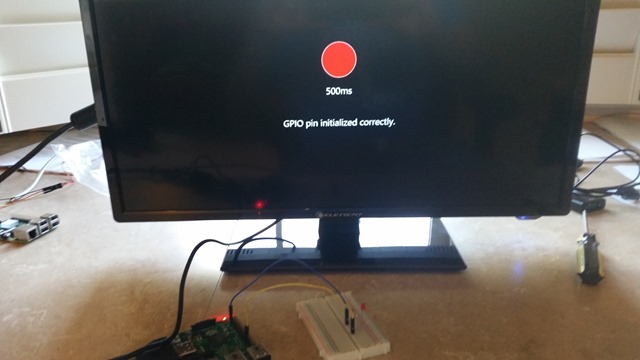
I then headed over to Visual Studio and copy/pasted the equisite “Hello IoT World” Blinky project to the Pi and watched the light go on and off.

20150822_104535

With that out of the way, I decided to look at controlling the light via Twitter and Azure.  The thought was to have the PI monitor a message queue on Azure and whenever there was a message, blink on or off (simulating the ejectabed being activated).  To that end, I went into Azure and created a basic storage account.  One of the nice things about Azure is that you get a queue out of the box when you create a storage account:

image

One of the not so nice things about Azure is that there is no way to control said Queue via their UI.  You have to create, push, and pull from the queue in code.  I went back to visual studio and added in the Azure Storage Nuget package

image

I then created a method to monitor the queue
1 internal async Task<Boolean> IsMessageOnQueue() 2 { 3 var storageConnectionString = "DefaultEndpointsProtocol=https;AccountName=ejectabed;AccountKey=xxx"; 4 var storageAccount = CloudStorageAccount.Parse(storageConnectionString); 5 var client = storageAccount.CreateCloudQueueClient(); 6 var queue = client.GetQueueReference("sloan"); 7 var queueExists = await queue.ExistsAsync(); 8 if (!queueExists) 9 { 10 GpioStatus.Text = "Queue does not exist or is unreachable."; 11 return false; 12 } 13 var message = await queue.GetMessageAsync(); 14 if (message != null) 15 { 16 await queue.DeleteMessageAsync(message); 17 return true; 18 } 19 GpioStatus.Text = "No message for the EjectABed."; 20 return false; 21 } 22

Then if there is a message, the PI would run the ejection sequence (in this case blink the light)
1 internal void RunEjectionSequence() 2 { 3 bedCommand.Eject(); 4 bedTimer = new DispatcherTimer(); 5 bedTimer.Interval = TimeSpan.FromSeconds(ejectionLength); 6 bedTimer.Tick += LightTimer_Tick; 7 bedTimer.Start(); 8 }


I deployed the code to the PI without a problem.  I then created a Basic console application to push messages to the queue that the PI could drain
1 class Program 2 { 3 static String storageConnectionString = "DefaultEndpointsProtocol=https;AccountName=ejectabed;AccountKey=xxx"; 4 5 static void Main(string[] args) 6 { 7 Console.WriteLine("Start"); 8 Console.WriteLine("Press The 'E' Key To Eject. Press 'Q' to quit..."); 9 10 var keyInfo = ConsoleKey.S; 11 do 12 { 13 keyInfo = Console.ReadKey().Key; 14 if (keyInfo == ConsoleKey.E) 15 { 16 CreateQueue(); 17 WriteToQueue(); 18 //ReadFromQueue(); 19 } 20 21 } while (keyInfo != ConsoleKey.Q); 22 23 Console.WriteLine("End"); 24 Console.ReadKey(); 25 } 26 27 private static void CreateQueue() 28 { 29 var storageAccount = CloudStorageAccount.Parse(storageConnectionString); 30 var client = storageAccount.CreateCloudQueueClient(); 31 var queue = client.GetQueueReference("sloan"); 32 queue.CreateIfNotExists(); 33 Console.WriteLine("Created Queue"); 34 } 35 36 private static void WriteToQueue() 37 { 38 var storageAccount = CloudStorageAccount.Parse(storageConnectionString); 39 var client = storageAccount.CreateCloudQueueClient(); 40 var queue = client.GetQueueReference("sloan"); 41 var message = new CloudQueueMessage("Eject!"); 42 queue.AddMessage(message); 43 Console.WriteLine("Wrote To Queue"); 44 } 45 46 47 private static void ReadFromQueue() 48 { 49 var storageAccount = CloudStorageAccount.Parse(storageConnectionString); 50 var client = storageAccount.CreateCloudQueueClient(); 51 var queue = client.GetQueueReference("sloan"); 52 var queueExists = queue.Exists(); 53 if (!queueExists) 54 Console.WriteLine("Queue does not exist"); 55 var message = queue.GetMessage(); 56 if (message != null) 57 { 58 queue.DeleteMessage(message); 59 Console.WriteLine("Message Found and Deleted"); 60 } 61 else 62 { 63 Console.WriteLine("No messages"); 64 } 65 } 66

I could then Write to the queue and the PI would read and react.  You can see it in action here:

image

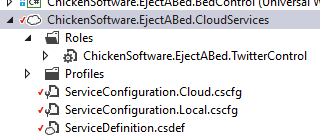
With the queue up and running, I was ready to add in the ability for someone to Tweet to the queue.  I created a cloud service project and pointed to a new project that will monitor Twitter and then push to the queue:

image

image

The Twitter project uses the TweetInvi nuget package and is a worker project.  It makes a call to Twitter every 15 seconds and if there is a tweet to “ejectabed” with a person’s name, it will write to the queue (right now, only Sloan’s name is available)
1 type TwitterWorker() = 2 inherit RoleEntryPoint() 3 4 let storageConnectionString = RoleEnvironment.GetConfigurationSettingValue("storageConnectionString") 5 6 let createQueue(queueName) = 7 let storageAccount = CloudStorageAccount.Parse(storageConnectionString) 8 let client = storageAccount.CreateCloudQueueClient() 9 let queue = client.GetQueueReference(queueName); 10 queue.CreateIfNotExists() |> ignore 11 12 let writeToQueue(queueName) = 13 let storageAccount = CloudStorageAccount.Parse(storageConnectionString) 14 let client = storageAccount.CreateCloudQueueClient() 15 let queue = client.GetQueueReference(queueName) 16 let message = new CloudQueueMessage("Eject!") 17 queue.AddMessage(message) |> ignore 18 19 let writeTweetToQueue(queueName) = 20 createQueue(queueName) 21 writeToQueue(queueName) 22 23 let getKeywordFromTweet(tweet: ITweet) = 24 let keyword = "sloan" 25 let hasKeyword = tweet.Text.Contains(keyword) 26 let isFavourited = tweet.FavouriteCount > 0 27 match hasKeyword, isFavourited with 28 | true,false -> Some (keyword,tweet) 29 | _,_ -> None 30 31 32 override this.Run() = 33 while(true) do 34 let consumerKey = RoleEnvironment.GetConfigurationSettingValue("consumerKey") 35 let consumerSecret = RoleEnvironment.GetConfigurationSettingValue("consumerSecret") 36 let accessToken = RoleEnvironment.GetConfigurationSettingValue("accessToken") 37 let accessTokenSecret = RoleEnvironment.GetConfigurationSettingValue("accessTokenSecret") 38 39 let creds = Credentials.TwitterCredentials(consumerKey, consumerSecret, accessToken, accessTokenSecret) 40 Tweetinvi.Auth.SetCredentials(creds) 41 let matchingTweets = Tweetinvi.Search.SearchTweets("@ejectabed") 42 let matchingTweets' = matchingTweets |> Seq.map(fun t -> getKeywordFromTweet(t)) 43 |> Seq.filter(fun t -> t.IsSome) 44 |> Seq.map (fun t -> t.Value) 45 matchingTweets' |> Seq.iter(fun (k,t) -> writeTweetToQueue(k)) 46 matchingTweets' |> Seq.iter(fun (k,t) -> t.Favourite()) 47 48 Thread.Sleep(15000) 49 50 override this.OnStart() = 51 ServicePointManager.DefaultConnectionLimit <- 12 52 base.OnStart()

Deploying to Azure was a snap
image
And now when I Tweet,
image
the PI reacts.  Since Twitter does not allow the same Tweet to be sent again, I deleted it every time I wanted to send a new message to the queue.

Facebook Api Using F#

A common requirement for modern user-facing applications is to interface with Facebook.  Unfortunately, Facebook does not make it easy on developers –> in fact it is one of the harder apis that I have seen.  However, there is a covering sdk that you can use, along with some hoop jumping, to get it working.  The problem is one of assumptions.  The .NET sdk assumes that you want to build a Windows Store or Phone app and it is human to facebook connections.  Once you get past those assumptions, you can do pretty well.

The first thing you need to do is set up a Facebook account.

image

image

Then register as a developer and create an application

image

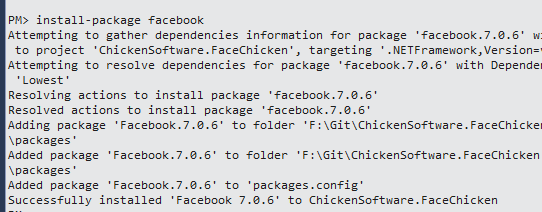
In Visual Studio, Nuget in the facebook sdk

image

Then, in the REPL add the following code to get the auth token

1 #r "../packages/Facebook.7.0.6/lib/net45/Facebook.dll" 2 #r "../packages/Newtonsoft.Json.7.0.1/lib/net45/Newtonsoft.Json.dll" 3 4 open Facebook 5 open Newtonsoft.Json 6 7 type Credentials = {client_id:string; client_secret:string; grant_type:string;scope:string} 8 let credentials = {client_id="123456"; 9 client_secret="123456"; 10 grant_type="client_credentials"; 11 scope="manage_pages,publish_stream,read_stream,publish_checkins,offline_access"} 12 13 14 let client = FacebookClient() 15 let tokenJson = client.Get("oauth/access_token",credentials) 16 type Token = {access_token:string} 17 let token = JsonConvert.DeserializeObject<Token>(tokenJson.ToString());

Which gives

image

Once you get the token, you can make a request to user and post to the page

1 let client' = FacebookClient(token.access_token) 2 client'.Get("me") 3 4 let pageId = "me" 5 type FacecbookPost = {title:string; message:string} 6 let post = {title="Test Title"; message = "Test Message"} 7 client'.Post(pageId + "/feed", post) 8

I was getting this message though

image

So then the fun part.  Apparently, you need to submit your application to the facebook team to be approved to be used.  So now I have to submit icons and a description on how this application will be used before I can make a POST.  <sigh>

Thanks to Gene Belitski for his help on my question on Stack Overflow

Wake County Voter Analysis Using FSharp, AzureML, and R

One of the real strengths of FSharp its ability to plow through and transform data in a very intuitive way,  I was recently looking at Wake Country Voter Data found here to do some basic voter analysis.  My first thought was to download the data into R Studio.  Easy?  Not really.  The data is available as a ginormous Excel spreadsheet of database of about 154 MB in size.  I wanted to slim the dataset down and make it a .csv for easy import into R but using Excel to export the data as a .csv kept screwing up the formatting and importing it directly into R Studio from Excel resulting in out of memory crashes.  Also, the results of the different election dates were not consistent –> sometimes null, sometimes not.   I managed to get the data into R Studio without a crash and wrote a function of either voted “1” or not “0” for each election

1 #V = voted in-person on Election Day 2 #A = voted absentee by mail or early voting (through May 2006) 3 #M = voted absentee by mail (November 2006 - present) 4 5 #O = voted One-Stop early voting (November 2006 - present) 6 #T = voted at a transfer precinct on Election Day 7 #P = voted a provisional ballot 8 #L = Legacy data (prior to 2006) 9 #D = Did not show 10 11 votedIndicated <- function(votedCode) { 12 switch(votedCode, 13 "V" = 1, 14 "A" = 1, 15 "M" = 1, 16 "O" = 1, 17 "T" = 1, 18 "P" = 1, 19 "L" = 1, 20 "D" = 0) 21 } 22

However, every time I tried to run it, the IDE would crash with an out of memory issue. 

 Stepping back, I decided to transform the data in Visual Studio using FSharp. I created a sample from the ginormous excel spreadsheet and then imported the data using a type provider.  No memory crashes!

1 #r "../packages/ExcelProvider.0.1.2/lib/net40/ExcelProvider.dll" 2 open FSharp.ExcelProvider 3 4 [<Literal>] 5 let samplePath = "../../Data/vrdb-Sample.xlsx" 6 7 open System.IO 8 let baseDirectory = __SOURCE_DIRECTORY__ 9 let baseDirectory' = Directory.GetParent(baseDirectory) 10 let baseDirectory'' = Directory.GetParent(baseDirectory'.FullName) 11 let inputFilePath = @"Data\vrdb.xlsx" 12 let fullInputPath = Path.Combine(baseDirectory''.FullName, inputFilePath) 13 14 type WakeCountyVoterContext = ExcelFile<samplePath> 15 let context = new WakeCountyVoterContext(fullInputPath) 16 let row = context.Data |> Seq.head

I then applied a similar function for voted or not and then exported the data as a .csv

1 let voted (voteCode:obj) = 2 match voteCode = null with 3 | true -> "0" 4 | false -> "1" 5 6 open System 7 let header = "Id,Race,Party,Gender,Age,20080506,20080624,20081104,20091006,20091103,20100504,20100622,20101102,20111011,20111108,20120508,20120717,20121106,20130312,20131008,20131105,20140506,20140715,20141104" 8 9 let createOutputRow (row:WakeCountyVoterContext.Row) = 10 String.Format("{0},{1},{2},{3},{4},{5},{6},{7},{8},{9},{10},{11},{12},{13},{14},{15},{16},{17},{18},{19},{20},{21},{22},{23}", 11 row.voter_reg_num, 12 row.race_lbl, 13 row.party_lbl, 14 row.gender_lbl, 15 row.eoy_age, 16 voted(row.``05/06/2008``), 17 voted(row.``06/24/2008``), 18 voted(row.``11/04/2008``), 19 voted(row.``10/06/2009``), 20 voted(row.``11/03/2009``), 21 voted(row.``05/04/2010``), 22 voted(row.``06/22/2010``), 23 voted(row.``11/02/2010``), 24 voted(row.``10/11/2011``), 25 voted(row.``11/08/2011``), 26 voted(row.``05/08/2012``), 27 voted(row.``07/17/2012``), 28 voted(row.``11/06/2012``), 29 voted(row.``03/12/2013``), 30 voted(row.``10/08/2013``), 31 voted(row.``11/05/2013``), 32 voted(row.``05/06/2014``), 33 voted(row.``07/15/2014``), 34 voted(row.``11/04/2014``) 35 ) 36 37 let outputFilePath = @"Data\vrdb.csv" 38 39 let data = context.Data |> Seq.map(fun row -> createOutputRow(row)) 40 let fullOutputPath = Path.Combine(baseDirectory''.FullName, outputFilePath) 41 42 let file = new StreamWriter(fullOutputPath,true) 43 44 file.WriteLine(header) 45 context.Data |> Seq.map(fun row -> createOutputRow(row)) 46 |> Seq.iter(fun r -> file.WriteLine(r)) 47

The really great thing is that I could write and then dispose of each line so I could do it without any crashes.  Once the data was into a a .csv (10% the size of Excel), I could then import it into R Studio without a problem.  It is a common lesson but really shows that using the right tool for the job saves tons of headaches.

I knew from a previous analysis of voter data that the #1 determinate of a person from wake county voting in a off-cycle election was their age:

image

image

image

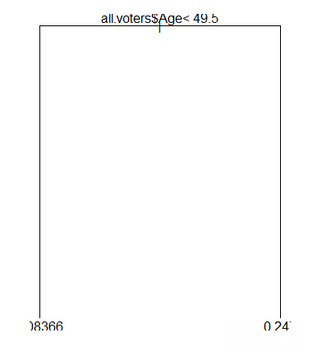
So then in R, I created a decision tree for just age to see what the split was:

1 library(rpart) 2 temp <- rpart(all.voters$X20131008 ~ all.voters$Age) 3 plot(temp) 4 text(temp)

Thanks to Placidia for answering my question on stats.stackoverflow

image

So basically politicians should be targeting people 50 years or older or perhaps emphasizing issues that appeal to the over 50 crowd.


Kaggle and R

Following up on last week’s post on doing a Kaggle competition, I then decided to see if I could explore the data more in R on my local desktop.  The competition is about analyzing a large group of house claims to give them a risk score.

I started the R studio to take a look at the initial data:

1 train <- read.csv("../Data/train.csv") 2 head(train) 3 summary(train) 4 5 plot(train$Hazard)

image

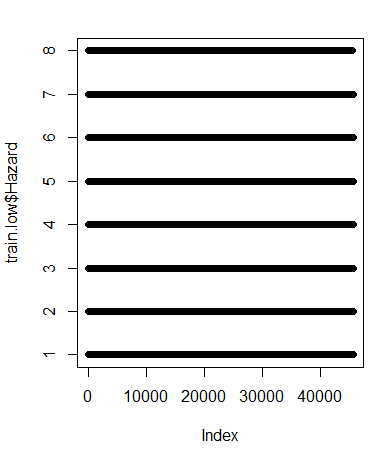
A couple of things popped out.  All of the X variables look to be categorical.  Even the result “Hazard” is an integer with most of the values falling between 1 and 9.

With that in mind, I decided to split the dataset into two sections: the majority and the minority.

1 train.low <- subset(train, Hazard < 9) 2 train.high <- subset(train, Hazard >= 9) 3 4 plot(train.low$Hazard) 5 plot(train.high$Hazard)

With the under as:

image

And the over 9 is like this

image

But I want to look at the Hazard score from a distribution point of view:

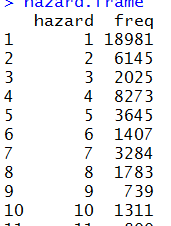
1 hazard.frame <- as.data.frame(table(train$Hazard)) 2 colnames(hazard.frame) <- c("hazard","freq") 3 hist(hazard.frame$freq) 4 plot(x=hazard.frame$hazard, y=hazard.frame$freq) 5 plot(x=hazard.frame$hazard, log(y=hazard.frame$freq)) 6

The hist shows the left skew

image


image

and the log plot really shows the distribution

image

So there is clearly a diminishing return going on.   As of this writing, the leader is at 40%, which is about 20,400 of the 51,000 entries.   So if you could identify all of the ones correctly, you should get 37% of the way there.  To test it out, I submitted to Kaggle only ones:

image

LOL, so they must take away for incorrect answers as it is same as “all 0” benchmark.  So going back, I know that if I can predict the ones correctly and make a reasonable guess at the rest, I might be OK.   I went back and tuned my model some to get me out of the bottom 25% and then let it be.  I assume that there is something obvious/industry standard that I am missing because there are so many people between my position and the top 25%.

Kaggle and AzureML

If you are not familiar with Kaggle, it is probably the de-facto standard for data science competitions.  The competitions can be hosted by a private company with cash prizes or it can be a general competition with bragging rights on the line.  The Titanic Kaggle competition is one of the more popular “hello world” data science projects that is a must-try for aspiring data scientists.

Recently, Kaggle hosted a competition sponsored by Liberty Mutual to help predict the insurance risk of houses.  I decided to see how well AzureML could stack up against the best data scientists that Kaggle could offer.

My first step was to get the mechanics down (I am a big believer in getting dev ops done first).  I imported the train and test datasets from Kaggle into AzureML.  I visualized the data and was struck that all of the vectors were categorical, even the Y variable (“Hazard”) –> it is an int with a range between 1 and 70.

image

I created a quick categorical model and ran it.  Note I did a 60/40 train/test split of the data

image

Once I had a trained model, I hit the “Set Up Web Service” button.

image

I then went into that “web service” and changed the input from a web service input to the test dataset that Kaggle provided.  I then outputted the data to azure blob storage.  I also added a transform to only export the data that Kaggle wants to evaluate the results: ID and Hazard:

image

Once the data was in blob storage, I could download it to my desktop and then upload it to Kaggle to get an evaluation and a ranking.

image

With the mechanics out of the way, I decided to try a series of out of box models to see what gives the best result.  Since the result was categorical, I stuck to the classification models and this is what I found:

image

image

The OOB Two Class Bayes Point Machine is good for 1,278 place, out of about 1,200 competitors.

Stepping back, the hazard is definitely left-skewed so perhaps I need two models.  If I can predict if the hazard is between low and high group, I should be able to be right with most of the predictions and then let the fewer outlier predictions use a different model.  To test that hypotheses, I went back to AzureML and added a filter module for Hazard < 9

image

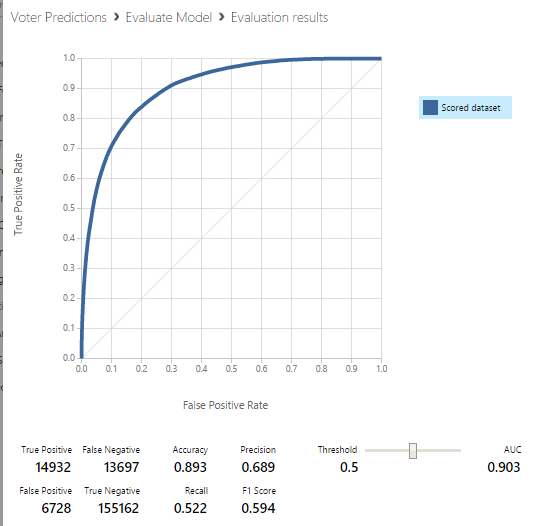
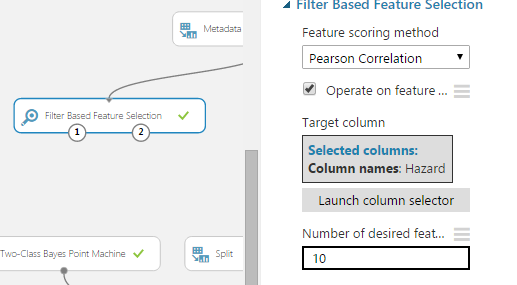
The problem is that the AUC dropped 3%.  So it looks like the outliers are not really skewing the analysis.  The next thought is that perhaps AzureML can help me identify the x variables that have the greatest predictive power.  I dragged in a Filter Based Feature Selection module and ran that with the model

image image

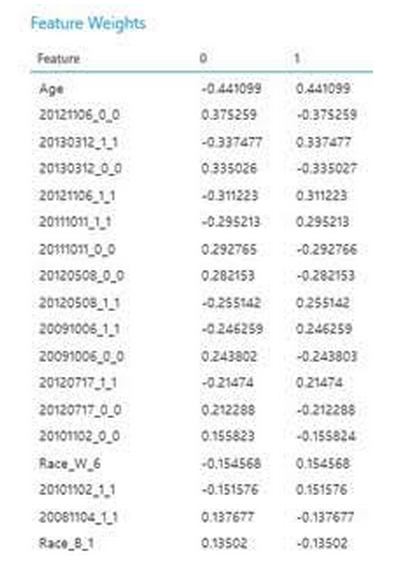
The results are kinda interesting.  There is a significant drop-off after these top 9 columns

image

So I recreated the model with only these top 9 X variables

image

And the AUC moved to .60, so I am not doing better.

I then thought of treating the Hazard score not as a factor but as a continuous variable.   I rejiggered the experiment to use a boosted decision tree regression

image

So then sending that over to Kaggle, I moved up.  I then rounded the decimal but that did this:

image

So Kaggle rounds to an int anyway.  Interestingly, I am at 32% and the leader is at 39%. 

I then used all of the OOB models for regression in AzureML and got the following results:

image

Submitting the Poisson Regression, I got this:

image

I then realized that I could mike my model <slightly> more accurate by not including the 60/40 split when doing the predictive effort.  Rather, I would put all 100% of the training data to the model:

image

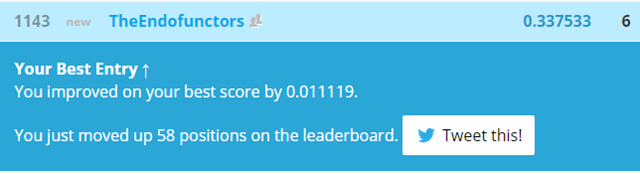
Which moved me up another 10 spots…

image

So that is a good way to stop with the out of the box modeling in AzureML. 

There are a couple of notes here

1) Kaggle knows how to run a competition.  I love how easy it is to set up a team, submit an entry, and get immediate feedback.

2) AzureML OOB is a good place to start and explore different ideas.  However, it is obvious that stacked against more traditional teams, it does not do well

3) Speaking of which.  You are allowed to submit 5 entries a day and the competition lasts 90 days or so.  With 450 entries, I am imagine a scenario where a person can spend their time gaming their submissions.  There are 51,000 entries so and the leading entry (as of this writing) is around 39% so there are 20,000 correct answers.  That is about 200 correct answers a day or 40 each submission.