According to WCPSS: Google > Bing

I went into a Wake County Library that is inside a local public high school.  I went to go to Bing via their WiFi and I got this:

Capture


I could get to Google.  I am surprised that my government was picking sides in the search engine wars – I mean it is not like either Google or Bing are different in any substantive way…

Kinect SDK

I purchased a Kinect last week so that I could start messing around with its API.

1) There are two versions of the Kinect.  The XBOX 360 one and the Windows one.  The only difference between the two that I could gather is that the Windows one pre-loads the SDK and allows you to distribute your software commercially.  Since I am just a hobbyist, I went with the XBOX one for $100 cheaper.

2) The Kinect for the XBOX360 requires an additional power cord for it to connect to your computer,  You don’t need to buy it though as it comes included.  I made that mistake (and compounded it by buying from the Microsoft store at a premium)

3) There are a couple different SDKs floating around out there.  There is the 1.0 SDK and the 1.5 SDK.  You will want to use the 1.5 one (because newer is always better) and there is a HUGE difference in the APIs between the two versions to the point that anything you wrote in 1.0 is useless.

4) I started digging into programming the Kinect with this book.  After reading the SDK samples and documentation, it really isn’t necessary.  The SDK is really well documented and is probably the best place to start to learn about the technology.

5) Once I dove into programming the Kinect, I realize that that this is no small task.  For C#, the amount of code you need to write and the complexity is higher than any other Microsoft technology I have seen.  You will need to know about bit shifts, the low-level details of graphical classes, and advanced data structures.  For example, here is an example from the Kinect Explorer solution:

// Converts a 16-bit grayscale depth frame which includes player indexes into a 32-bit frame
// that displays different players in different colors
private void ConvertDepthFrame(short[] depthFrame, DepthImageStream depthStream)
{
    int tooNearDepth = depthStream.TooNearDepth;
    int tooFarDepth = depthStream.TooFarDepth;
    int unknownDepth = depthStream.UnknownDepth;

    // Test that the buffer lengths are appropriately correlated, which allows us to use only one
    // value as the loop condition.
    if ((depthFrame.Length * 4) != this.depthFrame32.Length)
    {
        throw new InvalidOperationException();
    }

    for (int i16 = 0, i32 = 0; i32 < this.depthFrame32.Length; i16++, i32 += 4)
    {
        int player = depthFrame[i16] & DepthImageFrame.PlayerIndexBitmask;
        int realDepth = depthFrame[i16] >> DepthImageFrame.PlayerIndexBitmaskWidth;
        
        if (player == 0 && realDepth == tooNearDepth)
        {
            // white 
            this.depthFrame32[i32 + RedIndex] = 255;
            this.depthFrame32[i32 + GreenIndex] = 255;
            this.depthFrame32[i32 + BlueIndex] = 255;
        }
        else if (player == 0 && realDepth == tooFarDepth)
        {
            // dark purple
            this.depthFrame32[i32 + RedIndex] = 66;
            this.depthFrame32[i32 + GreenIndex] = 0;
            this.depthFrame32[i32 + BlueIndex] = 66;
        }
        else if (player == 0 && realDepth == unknownDepth)
        {
            // dark brown
            this.depthFrame32[i32 + RedIndex] = 66;
            this.depthFrame32[i32 + GreenIndex] = 66;
            this.depthFrame32[i32 + BlueIndex] = 33;
        }
        else
        {
            // transform 13-bit depth information into an 8-bit intensity appropriate
            // for display (we disregard information in most significant bit)
            byte intensity = (byte)(~(realDepth >> 4));

            // tint the intensity by dividing by per-player values
            this.depthFrame32[i32 + RedIndex] = (byte)(intensity >> IntensityShiftByPlayerR[player]);
            this.depthFrame32[i32 + GreenIndex] = (byte)(intensity >> IntensityShiftByPlayerG[player]);
            this.depthFrame32[i32 + BlueIndex] = (byte)(intensity >> IntensityShiftByPlayerB[player]);
        }
    }
}

My goal is to have enough to work with to present at TriNug’s code camp in November.  That might be a stretch…

So what pattern is this

I was working with Rob Seder on an interesting problem.  I have a 3rd party assembly that I am writing a façade over – this façade will be used by other developers in their applications.  Because of licensing, the 3rd party assembly cannot be installed on workstations.  The assembly can be installed on a WCF service that applications can then call – a façade calling another façade.

Following the ADO.NET model, we created a Connection that inherited from DBConnection and a Command that inherited from DbCommand.  My initial thought was to create two different commands that reflect the different connection methods: a WebServiceCommand and a DirectCallCommand with the individual implementations in each command’s ExecuteScaler() method.  Each command would take in a connection that that is specific to the connection type.

After some discussion, we decided to do the opposite.  We created an interface for the connections that have 1 method, Execute, and that takes in the type of command needed.

interface IFooConnection
{
    object Execute(FooCommand command);
}

The FooCommand derived from DbCommand and newed the Connection property:

image


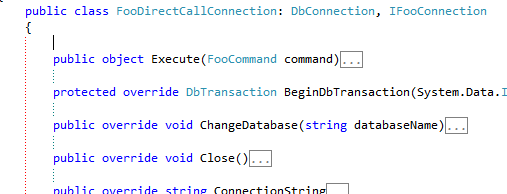
We then created two connections that implement the IFooConnection interface, for example:

image

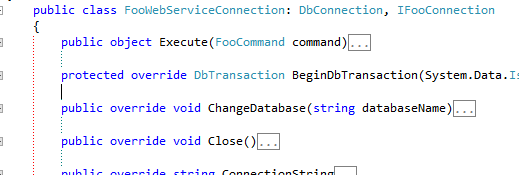
and

image


In the execute method, we implemented the connection-specific code.  The WebService call in the FooWebServiceConnection and the direct API calls in the FooDirectCallConnnection.

Then, we overrided the FooCommand ExecuteScaler, that calls the connection’s specific implementation:

public override object ExecuteScalar()
{
    return this.Connection.Execute(this);
}

I like this solution because it is extensible – new kinds of FooConnections come in, we just have to create specific implementation in the Execute method.  I have some questions in my head:

  • Does this follow any established design-pattern?  I re-read the GOF book this AM and could not find one that matched.
  • Is this an example of any SOLID principle?
  • Is this an example of Dependency Injection?

Domain Specific Language and POCOs

I was thinking about POCOs last night and how they relate to the Ubiquitous Language Principle*.  To illustrate my thoughts, I created a simple 3-tier solution ins Visual Studio.  The User Layer is a Console Application that references the Business Layer.  The Business Layer then references the Data Layer.  The Data Layer uses Entity Framework to handle all of the CRUD with the actual database. 


image


Following good design, I know that my POCOs need to represent the domain objects that the application is acting on.  I also know that these domain objects need to be defined only once.  Also, because of the dependencies, the EF created classes should not be visible to the User Layer – if the UI references the data layer, then the simplicity of design and the chance of circular relationships and twisted logic increases significantly. 

Following that path, I created a POCO in my data layer.  I started with a Category Class:

image

Note the naming difference among properties between the Business Layer Category Class and the Data Layer Category Class.  I then wired up a CategoryFactory class that provides new Categories and acts on changes to altered categories – sort of a mish-mash between the GOF Factory and Builder pattern and the more-recent Repository pattern.

The first method I wrote was a select by id method:

public Category GetCategory(int id)
{
    NorthwindEntities entities = new NorthwindEntities();
    entities.Categories.Where(c => c.CategoryID == id).FirstOrDefault();
    return null;
}

The problem is immediately apparent.  I am selecting a Northwind.Data.Category from the data layer but I am returning a Northwind.Business.Category from the business layer.  I need some kind of translation method to handle the 2 classes.

public Category GetCategory(int id)
{
    NorthwindEntities entities = new NorthwindEntities();
    Northwind.Data.Category dataCategory = entities.Categories.Where(c => c.CategoryID == id).FirstOrDefault();
    return ConvertCategory(dataCategory);
}

private Category ConvertCategory(Northwind.Data.Category dataCategory)
{
    Category category = new Category()
    {
        Id = dataCategory.CategoryID,
        Description = dataCategory.Description,
        Name = dataCategory.CategoryName
        //TODO: Convert byte[] to picture 
    };
    return category;
}

This kind of solution introduces lots of code, which can be fixed using a POCO generator.  I still have a problem though – does having a Category in each layer violate the Ubiquitous Language Principle?  If you read Even’s description, the answer is “maybe” – he introduces the ULP so that business people can be specific in their requirements and talk in terms of the domain model.  Should the business experts even know about the data layer – probably not.  But what about 2 different sets of developers on the team – the business layer developers and the data layer developers?  When they talk about a Category in a meeting, which one?  Should they namespace it?  How about if we add the dbas to the meeting?  Their category is the actual representation on the database, which may or may not directly correspond to the data layer category which may not correspond to the business layer category.  Finally, what happens when the business expert talks to the dbas (a common occurrence when the reporting module is being developed separately).  The business expert might be talking Northwind.Business.Category and the dba is talking a Category table record. 

I don’t have a good solution, or even a good set of possible options:

1) Give every object a name that reflects not only their business meaning but their layer with the Cannon being the business layer.

CategoryDataTable

CategoryDataObject

Category

Yuck. And do you want to tell the DBA/Data Modeler that they have to rename their tables?  Good luck.

2) Always talk in namespaces in meetings.  For example. “Hey Joe, I noticed that the Data.Category object has a Description field.  Is it read-only?”  The Business.Category is not.  Less yucky, but requires a more specific lexicon that might drive your business experts nuts.  Also, note the variable name that I used in the transform method (dataCategory) – it is not really Hungarian notation because I am not using the type in the prefix, but I am using the namespace.  Yuck.

3) I don’t have an option #3.

As it stands, I option for #2 – I would rather be specific with my business experts and use some kind of Hungarian-notation bastardization. But I am not happy….


*   The Ubiquitous Language Principle is something I coined after reading chapter 2 of  Eric Evan’s Domain Driven Design

The Coolness Of Inheritance

I was writing a simple request/response to a non-WCF web service.  The service’s request SOAP looked like this:

<?xml version="1.0" encoding="utf-8" ?>
<WorkItem AppName='TBD'>
  <UserName nametype='familiar'>Jamie</UserName>
  <UserItem>Pencil</UserItem>
</WorkItem>

created some classes that matched the request:

[Serializable]
public class WorkItem
{
    [XmlAttribute(AttributeName="AppName")]
    public string ApplicationName { get; set; }
    [XmlElement]
    public UserName UserName { get; set; }
    [XmlElement]
    public string UserItem { get; set; }
}

and

[Serializable]
public class UserName
{
    [XmlAttribute(AttributeName = "nameType")] 
    public string NameType { get; set; }
    [XmlText]
    public string Value { get; set; }
}

I then created a function that populates these classes with the data:

static WorkItem CreateWorkItem()
{
    WorkItem workItem = new WorkItem();
    UserName userName = new UserName();

    userName.NameType = "familiar";
    userName.Value = "Jamie";

    workItem.ApplicationName = "TBD";
    workItem.UserName = userName;
    workItem.UserItem = "Pencil";

    return workItem;
}

Finally, I created a helper function that takes the classes and serializes them as XML:

static XmlDocument CreateXMLDocument(WorkItem workItem)
{

    XmlSerializer serializer = new XmlSerializer(typeof(WorkItem));
    XmlSerializerNamespaces namespaces = new XmlSerializerNamespaces();
    namespaces.Add(String.Empty, String.Empty);
    StringWriter stringWriter = new StringWriter();
    serializer.Serialize(stringWriter, workItem, namespaces);
    stringWriter.Close();

    XmlDocument xmlDocument = new XmlDocument();
    xmlDocument.LoadXml(stringWriter.ToString());
    return xmlDocument;
}

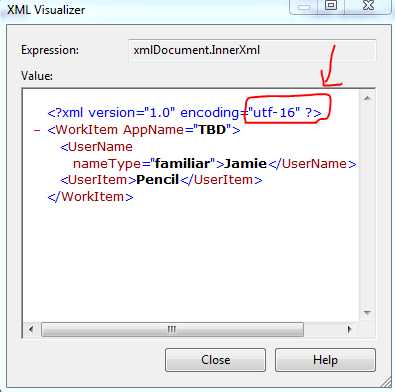
When I run it, things look great… except that the Encoding is wrong:

image

The path of least resistance would be to set the Encoding property of the StringWriter class.  However, that property is read-only.  After playing around with the different classes in System.IO that expose encoding (usually though the constructor), I stumbled upon this great article.  The easiest way to get UTF-8 encoding in a stringWriter is to override the default implementation in the constructor.  I went ahead and created a new class and overrode the Encoding property.

public class UTF8StringWriter : StringWriter
{
    Encoding encoding;
    public UTF8StringWriter()
        : base()
    {
        this.encoding = Encoding.UTF8;
    }

    public override Encoding Encoding
    {
        get
        {
            return encoding;
        }
    }
}

Note that I used a local variable.  Thank goodness the StringWriter uses its property (not a private variable) in the Serialize method.  A big thank you to whoever wrote that class in a proper way.  I then changed the stringWriter variable to a UTF8WringWriter like this:

UTF8StringWriter stringWriter = new UTF8StringWriter();

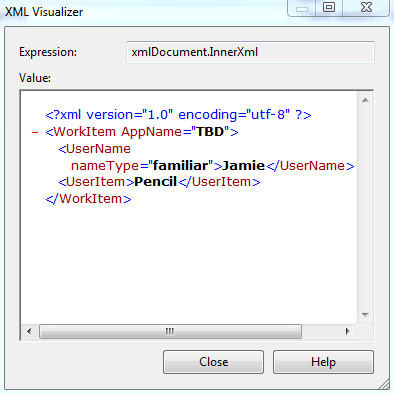
The output now renders correctly:

image

XML Code Comments


I made a new-years resolution* to learn more about XML code comments and the associated language – MAML.  To that end, I installed Sandcastle and the Sandcastle Help File Builder  – now found here and here.

I then when to one of my many “Hello World” projects laying around my file system.  The sum total of the project is this:

public class Program
{
    public static void Main(string[] args)
    {
        WriteMessage("Hello World");
        Console.ReadKey();
    }

    public static void WriteMessage(string input)
    {
        if(String.IsNullOrEmpty(input))
        {
            throw new ArgumentNullException("Input cannot be empty.");
        }

        Console.WriteLine(input);
    }
}

Note that the scope of the class and methods are public.

I then went into project properties and checked off  XML Document file:

image

I then hit F6 and….

image

How cool is that?  VS2010 tells you if you are missing comments – it keeps track of things so you don’t have to.  So now I have to add some comments.  I went above the class and hit /// and presto-chango, I get an awesome block of code comments.  The other nice thing about this snippet is that if there are parameters, that gets pre-filled for me.  For example, the WriteMessage snippet looks like:

        /// <summary>
        /// 
        /// </summary>
        /// <param name="input"></param>

I then went ahead and added code comments to that method:

        /// <summary>
        /// Writes a message to the console window.
        /// </summary>
        /// <param name="input">The message to be written.</param>
        /// <exception cref="ArgumentNullException">If the input is null or empty.</exception>

Note that when you hit ///, you get an option of a bunch of different kinds of comments.  A full list for is found here.  Also note that my comments are all in grammatically-correct English with punctuation.  Finally note that I use param for the input, not paramref in the summary…

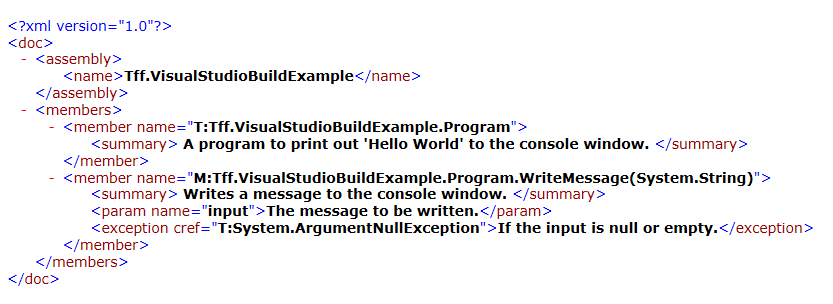
I then added a class-level comment and changed the scope of Main.  I hit F6 and I now have an XML code comment file created and ready in my bin directory.

image

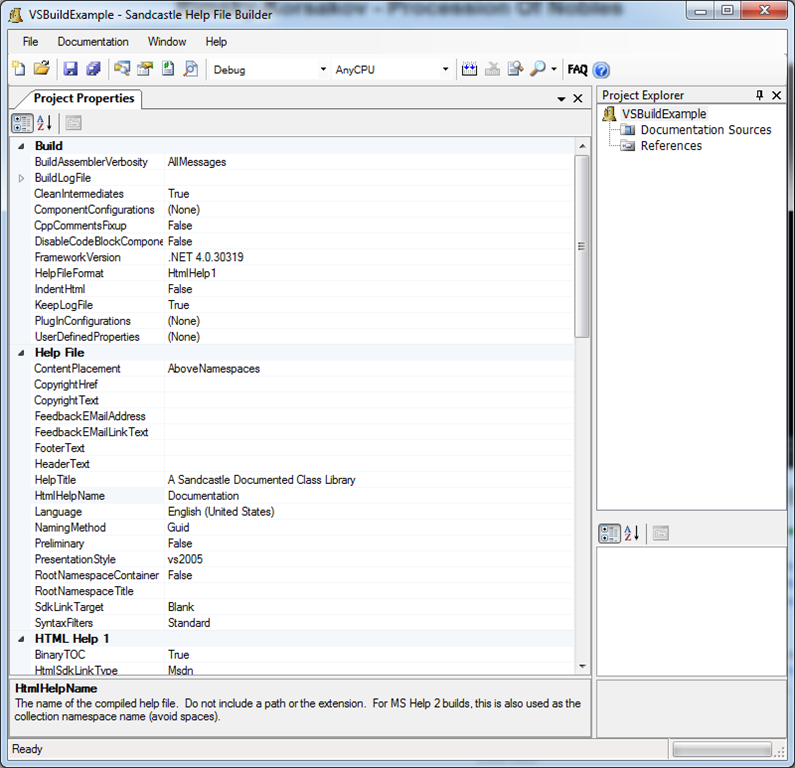
I then loaded up Sandcastle Help File Builder and created a new project:

image

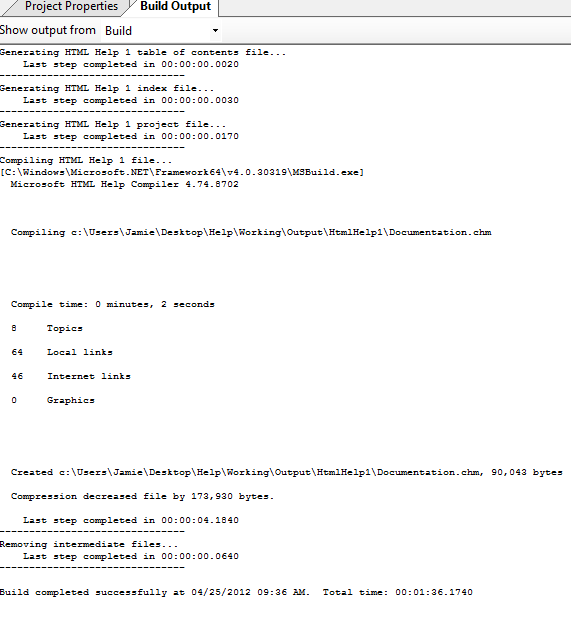
I then added a reference to the XML file that was generated by Visual Studio Project Explorer-> Documentation Sources –> Right Click Add.  Then, I hit Build (the two down arrow button) and magic happened – right in front of my very eyes. 

image

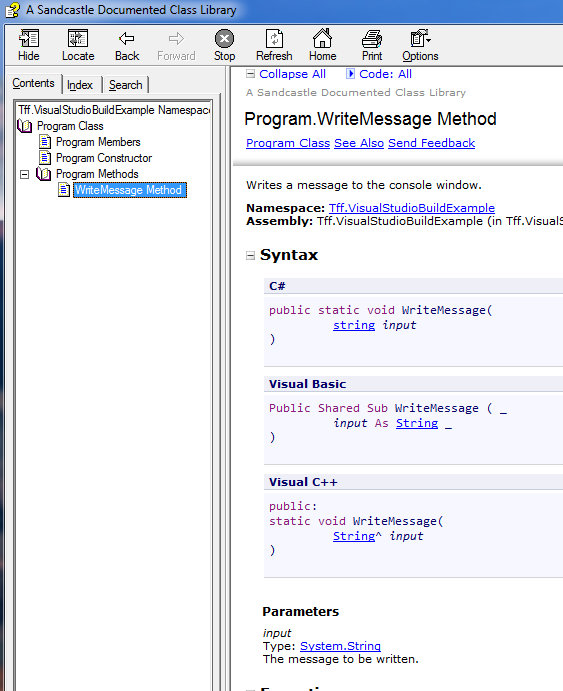
Opening up the .chm file, I got full-blown help file. 

image 

There was one problem, as you can read in the output from SHFB:

Warn: ShowMissingComponent: Missing <summary> documentation for N:Tff.VisualStudioBuildExample

And in the help file:

image

To get around this, I first started trying to add another XML file in addition to the one that VS2010 generated – a XML Document File – You can read about it here.   I futzed around with it for a bit and then gave up.  I then just added the values a properties in SHFB here:

image

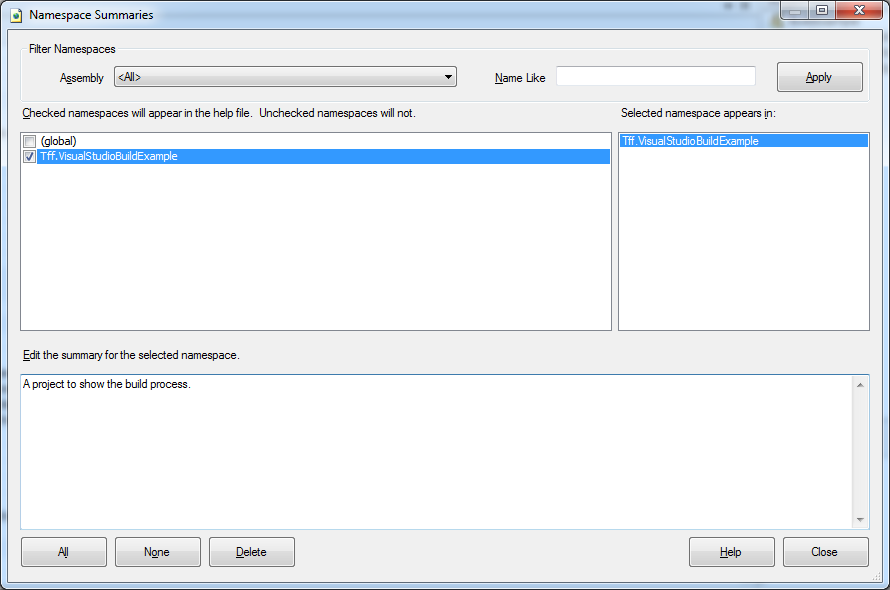
Clicking on the ellipses, you get this dialog where you can enter in your summaries:

image

And then you get the namespace comments:

image


* Nepali New Year is celebrated on the 1st of Baisakh Baisākh (12–15 April) in Nepal. Nepal follows Vikram Samvat (विक्रम संवत्) as an official calender. (Not to be confused with Nepal Era New year).  Thanks Wikipedia!

Where am I building?

One of the cool things about Visual Studio is that it hides much of the project deployment and configuration from the developer.  For example, if you create a new console project in Visual Studio 2010, type in a couple lines of code,  and hit Run (F5), things just work.  You get a .exe created and it runs.

Microsoft does a good job explaining all that is going on here.  If you haven’t read through these posts, I highly recommend that you do – you can understand the magic that is going on.  There are some conventions that Visual Studio uses that are not necessarily documented clearly.  Note that I am using C#.

When you create a new Console project, Visual Studio places a directory on your file system that you specify in the Location text box.

image

In that directory, it creates a .csproj file, a Program.cs file, and 3 directories.

image

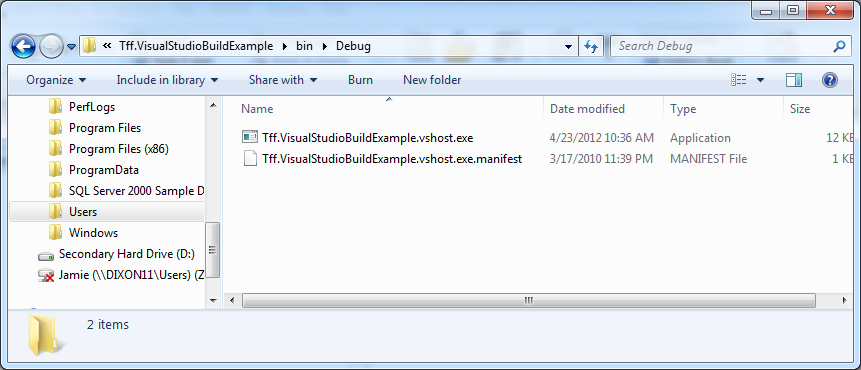
If you open bin, there is a folder called Debug and in that folder, there are these files that VS2010 created for you:

image

These files are the linkers between your soon-to-be-running .exe and visual studio – it associates VS2010 debugging with your project.  A full explanation can be found here.   If you double-click on it (it is a .exe after all)…. Nothing happens. 

The obj folder has a series of subfolders and 1 file:
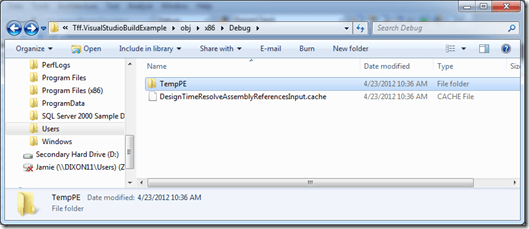
image

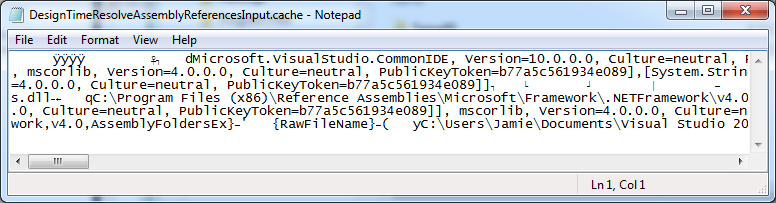
The stuff in the obj folder is none of your concern.  It is the place where Visual Studio 2010 takes your source files and creates a working assembly.   If you open the .cache file in notepad, you get semi-readable stuff:

image

In any event. the last folder, Properities, contains code files that you can update.  In this case, it contains a file called AssemblyInfo.  This file contains meta data about your application.  If you open it in notepad, it looks like this:
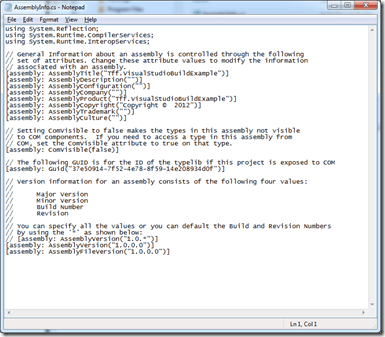
image 

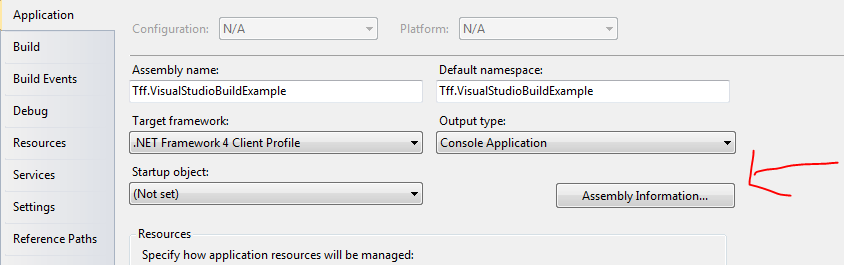
You can enter info there, or you can use that fancy-pants IDE VS2010 via the Properties Page->AssemblyInformation button:

image

image

However, once you alter it via VS2010, the Properties file does not reflect it until you save the file…

The last stop on this little tour is the .csproj file.  This file is actually a MSBuild file – which means

1) It is well-formed XML

2) It is really hard to read

Most of the projects that I see that are in trouble suffer from dependency bloat – they rely on tons and tons of 3rd party libraries (each versioned differently), other parts of the .NET framework, etc..  The .csproj file is where VS2010 keeps tracks of these dependencies.  This is also where VS2010 keeps tracks of all of those code files that you create/write that vshost uses.

Next, in the build tab of the project properties, there is an Output Path field.  The default is bin\Debug.

image 

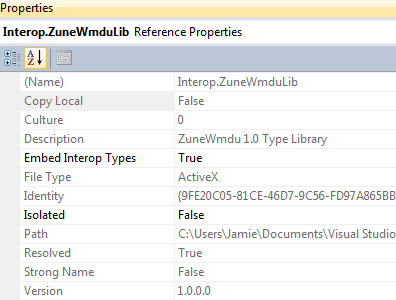
This is where VS2010 (vshost actually)  actually creates the .exe.  The reason I bring this up is that if you have 3rd party components that your application is using that are not in the GAC,  VS2010 attempts to build those .dlls and place them in the same directory as the running .exe (assuming you had it marked as Copy Local)

image

If you don’t want VS2010 to put the dependent .dlls, mark them as copy local – false and have them placed in the output directory manually.

Anyway – hope this helped someone  – it certainly helped me…

Start me up!

When you create a new Windows Form project, you get a Form1 out of the box.  In that Form’s code behind, you get a constructor with a call to initialize component.

public partial class Form1 : Form
{
    public Form1()
    {
        InitializeComponent();
    }
}

When you hit F5 to run the application, how does the .NET runtime know to launch Form1?  The answer is that Visual Studio pre-builds another module called Program where there is 1 method, static void Main, that looks like this.

static class Program
{
    /// <summary>
    /// The main entry point for the application.
    /// </summary>
    [STAThread]
    static void Main()
    {
        Application.EnableVisualStyles();
        Application.SetCompatibleTextRenderingDefault(false);
        Application.Run(new Form1());
    }
}

So how does the .NET runtime know to look for Program.Main to run?  The answer is that the .NET runtime has hard-coded into its logic to look for static void Main() as described here.  That means that you can put static void Main anywhere in your project and the .NET Runtime will find it.*

The reason I bring this up is because I was peer-reviewing a Windows Form project that had removed the Program file/class and stuck static void main in the code behind of Form1 – and static void main called, you guessed it, Form1.  For a second I froze thinking that they created a recursive loop, when I realized that static void Main only gets called once – Form1 never actually uses it.

In any event, a better practice would be to have a separate module (called Program, MyGreatProgram, whatever) to launch the Form(s) and do whatever pre-processing I necessary.


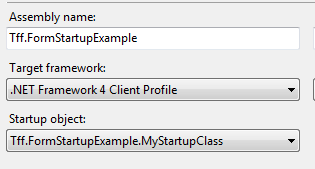
* Note that you can override this default behavior by using the Startup object property in the project’s property page:

image

By having as (Not Set), the .NET runtimes looks for static void Main.  You can override this with your own class.method.  For example:

public class MyStartupClass
{
    public static void Main()
    {
        Application.Run(new Form1());
    }
}

and then point to it:

image

Note that if you remove all static void main methods in your project, you will get this exception:

Error    1    Program ‘C:\Users\Jamie\Documents\Visual Studio 2010\Projects\Tff.FormStartupExample\Tff.FormStartupExample\obj\x86\Debug\Tff.FormStartupExample.exe’ does not contain a static ‘Main’ method suitable for an entry point    Tff.FormStartupExample

Finding your largest file

I had a recent project where I had to loop though a directory and then any subdirectory and pull out any .jar files to stick onto a class path…. Man, java sucks.  In any event, I whipped this code, which I then modified to find the largest file on my file system.  Kinda handy – if my hard drive space starts creeping up:

static void Main(string[] args)
{
    Console.WriteLine("Start");
    string startingPath = @"C:\Users";
    List<FileInfo> fileInfos = GetFileInfos(new DirectoryInfo(startingPath));
    Console.WriteLine("{0} files found", fileInfos.Count);
    FileInfo largestFile = fileInfos.FirstOrDefault(f => f.Length == fileInfos.Max(t => t.Length));
    Console.WriteLine("{0} is the largest with {1} bytes", largestFile.Name, largestFile.Length);
    Console.WriteLine("End");
    Console.ReadKey();
}

static List<FileInfo> GetFileInfos(DirectoryInfo directoryInfo)
{
    List<FileInfo> fileInfos = null;
    try
    {
        fileInfos = directoryInfo.GetFiles().ToList();
        foreach (DirectoryInfo currentDirectoryinfo in directoryInfo.GetDirectories())
        {
            try
            {
                fileInfos.AddRange(GetFileInfos(currentDirectoryinfo));
            }
            catch (ArgumentNullException)
            {
            }
            catch (PathTooLongException)
            {
            }
        }
    }
    catch (UnauthorizedAccessException)
    {

    }


    return fileInfos;
}

CLR Profiler: Note to Jamie – Follow These Steps

1) Open CLR Profiler – make sure you are using the 32 bit version for 32-bit apps

2) Make sure Allocations and Calls are checked in the Profile section:

image

3) Start the application using the Start Application button

4) Run the app for a bit

5) Press the Kill Application button to get the following screen:

image


6) The math is: AllocatedBytes – RelocatedBytes = FinalHeapBytes.  ReloactedBytes are the bytes that moved into the garbage collection, FinalHeapBytes are the bytes that never got garbage collected.

7) Views –> Objects By Address.  Select most frequent object.  Right Click Export data to file.  Sort by size and then look at allocated by and callled from

8) Look at the heap graph – only the GC heap and then the tree view